

Some analyses do not produce a measured number. A coliform test reads present or absent, a rapid test positive, negative or invalid, a colour is judged against a scale. Typed as free text, these results end up as “pos”, “Positive”, ”+” and “POS.” in the same column, and no report or query can count them reliably.
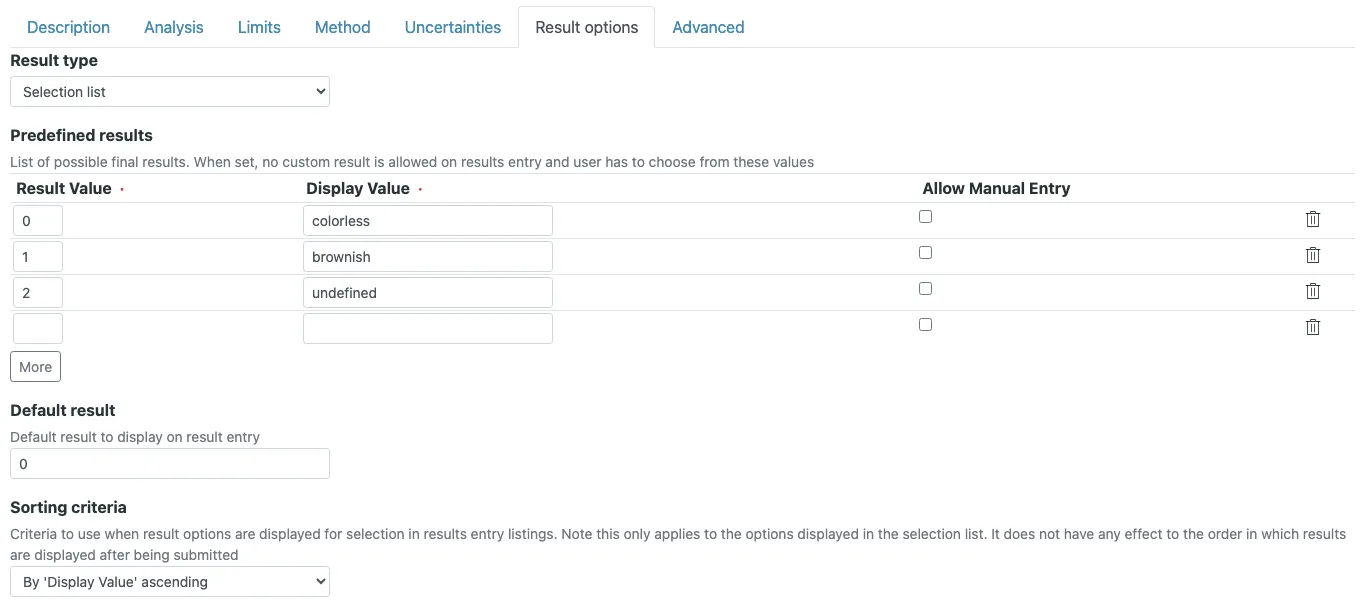
SENAITE handles them with predefined results on the Analysis Service, on its Result Options tab.
A number with a label
Each predefined result has two parts:
- Result Value: a number. This is what SENAITE stores as the result of the analysis.
- Display Value: the text the analyst picks from and the report prints.
So 0:Negative, 1:Positive, 2:Invalid store 0, 1 or
2 and show the word. SENAITE validates both columns: the
Result Value must be a number (at most five characters) and
unique within the service, the Display Value is required and
unique as well.
Storing a number is what makes the rest of the system work with categorical results:
- Specifications. A specification can set a range on the
stored value. With
Max 0on the coliform test, everyPresent(stored as1) is flagged out of range, exactly like a numeric result above its limit. See specifications. - Calculations. A formula reads the stored number. A calculation that sums the results of four pathogen tests counts the positives.
- Integrations. Over the JSON API the result is the stable number, regardless of how the label is worded or translated.
Result types
The Result type field decides how the analyst enters the result. Besides Numeric, String and Text, plus Date and Datetime, there are four types that use predefined results:
| Result type | Analyst picks | Stored as |
|---|---|---|
| Selection list | one option from a dropdown | one value |
| Multiple selection | several options from a list | a list of values |
| Multiple selection (with duplicates) | options, the same one repeatedly | a list of values |
| Multiple choices | several options, all shown at once | a list of values |
For the list types, a specification flags the result only if none of the selected values is in range.
Default result pre-fills the entry when the analysis is created. For selection types it must be one of the Result Values.
Sorting: alphabetical unless you say otherwise
The Sorting criteria default to the Display Value in
ascending order. A scale entered as Weak, Moderate,
Strong therefore appears as Moderate, Strong, Weak in the
dropdown. Set the sorting to “Keep order above” or to the
Result Value when the order carries meaning. This only affects
the dropdown, not stored results.
Manual entry: the escape hatch
SENAITE 2.7 adds Allow Manual Entry per option. When the analyst selects such an option, a text field appears and the typed text is stored as the result. Typical use is an “Other” option for the rare case the list does not cover. An option whose value or display text is “Other” behaves this way even without the checkbox.
Use it knowing what it costs. A manually entered result is free text, not one of the numbers:
- a calculation that depends on it gets no usable input,
- a specification cannot judge it,
- reports and statistics cannot group it with the predefined outcomes.
Every manual entry option is a gap in the consistency the list was meant to provide. If the same “Other” text keeps coming up, turn it into a predefined result.
Result variables
On the same tab, Result variables add extra fields next to
the result, such as “Sediment visible: yes/no” on a colour
assessment. They take the same value:text choices, for
example 0:No|1:Yes, can be printed on the report as a
footnote under the result, and can be read by a
calculation.
Their keywords must be unique across the whole system; many
labs prefix them, for example x_sediment.
A worked example
E. coli as a presence/absence test in drinking water:
| Setting | Value |
|---|---|
| Result type | Selection list |
| Predefined results | 0 Absent, 1 Present |
| Sorting criteria | Keep order above |
| Default result | 0 |
| Specification (drinking water) | Max 0 |
The analyst sees “Absent” pre-selected and changes it only for
a positive sample. A Present result is flagged out of range,
the report prints “Present” with the out-of-range mark, and an
export of the month’s results counts positives by the value
1.

When not to use them
- Rare observations. A remark field is the better place than an option nobody picks twice.
- Numbers in disguise. If “low”, “medium”, “high” are really bands of a measured value, record the value and let a specification judge it. When the band limits change, the measured values stay comparable; results stored as “medium” do not.
Integer Result Values that never change are worth deciding before go-live. They end up in calculations, instrument import mappings and exports, which all keep working when a label is reworded later.