

senaite.storage models where material is kept: facilities,
positions inside them, containers, and sample containers with
numbered slots. A sample is stored into a slot and retrieved from
it, and both are workflow transitions with a history.
The 2.7 development cycle added what most labs kept in a separate spreadsheet: how long a sample has to be kept, a warning before that time runs out, a reason for every retrieval, and barcode stickers for the storage locations themselves. All of it is merged on the 2.x branch and ships with SENAITE 2.7, which is not yet released at the time of writing. The same cycle added two roles, Storage Manager and Storage Assistant, with matching groups, so storage work can be given to people who do not otherwise run analyses.
Retention rules
Retention usually depends on what was tested and sometimes on what came out. A sample with a positive pathogen finding is kept longer than a negative one; a sample for a regulated parameter longer than a routine one.
The storage control panel has a Retention Rules tab with a grid of rules. Each rule names an analysis service, optionally a result value, and a number of days.
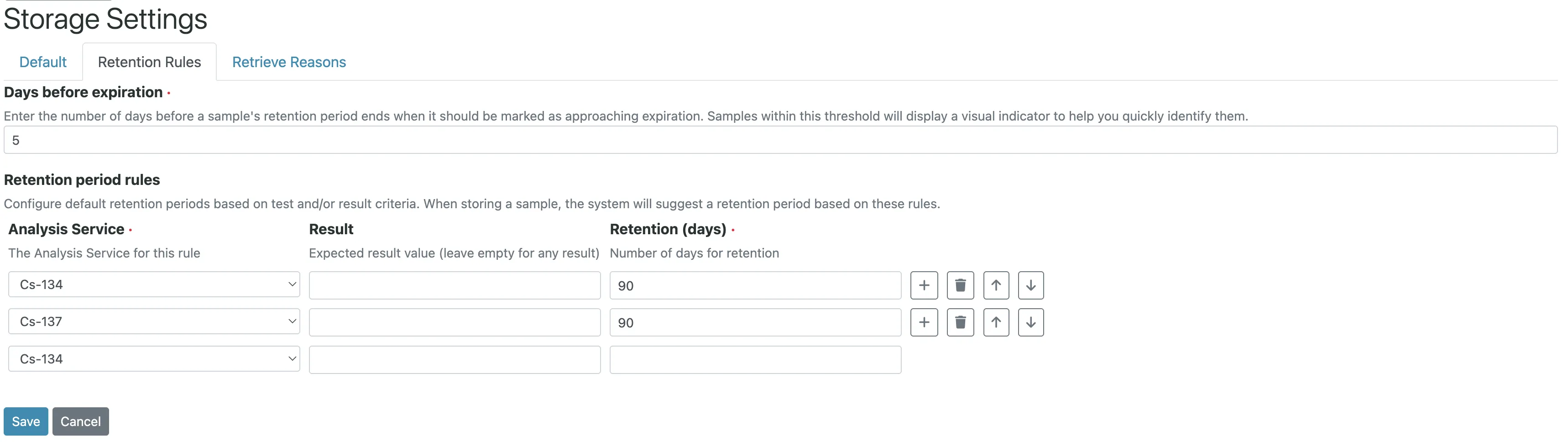
When a sample is stored, SENAITE works out a default period from its analyses:
- For every analysis of the sample, it looks up the rules for that analysis service.
- A rule with a result value only counts if the analysis has that result. A rule without one counts for any result.
- If any rule with a result value matched, the longest of those wins. Otherwise the longest of the general rules wins.
- If nothing matches, there is no default.
A worked example. A lab has three rules:
| Analysis service | Result | Days |
|---|---|---|
| Salmonella | 30 | |
| Salmonella | Detected | 365 |
| Lead | 90 |
A sample with a negative Salmonella result and a lead result gets 90 days: no result-specific rule matched, and of the general rules (30 and 90) the longer one wins. A sample with Salmonella “Detected” gets 365 days, because a matching result-specific rule takes priority over the general ones.
The period is filled into the store form as a default, and the person storing the sample can change it. The expiry date is the date of storing plus the number of days, and it is stored on the sample.
Three details that decide whether this works
Results have to exist when the sample is stored. The default is computed from the results present at that moment. If samples go into storage before the results are in, which is common for retained material, only the general rules apply. A positive result entered a week later does not change the expiry date. Decide in the SOP whether retained samples are stored after verification, or whether the period is checked by hand when a positive result comes in.
Result values are compared as stored. For services with
predefined result options, the rule grid offers those options in a
dropdown, which is the reliable case. For numeric results the rule
compares the stored text exactly, so 5 does not match 5.0.
Result-specific rules are meant for option results such as
Detected or Not detected, not for thresholds on numbers.
Nothing happens automatically at expiry. An expired sample is not disposed of or moved. The rules produce a date and a warning; the decision stays with a person.
Seeing what is due
The samples listing gains a Storage Expiry Date column under the Stored state and a Past Retention filter button. In the storage containers, samples close to their expiry date are shown in orange and expired ones in red. How close counts as close is set in the control panel as Days before expiration, five by default.
A workable weekly routine: open the samples listing, click Past Retention, check the list against any holds (complaints, open investigations), and move the rest on to disposal.
Retrieval with a reason
What used to be called Recover is now Retrieve in every label,
button and message, matching the wording of ISO/IEC 17025 and ISO
15189. The internal transition id is still recover, so add-ons
and scripts that use it keep working.
More important for the audit trail: retrieval can now require a
reason. The control panel has a Retrieve Reasons tab with a
list of predefined reasons, for example Re-test, Client request or Confirmation by external lab, and a switch that makes
a reason mandatory. The retrieve form then offers the list plus a
free-text option for anything else. On the sample, a viewlet shows
the reason together with who retrieved it and when.
Without a reason, the history only says that a sample left storage. With one, it says why, which is the question an assessor asks when the same sample was stored and retrieved three times.
Stickers for storage locations
A barcode scanner cannot help find a box if the box has no barcode.
Facilities, positions and containers now have a Print stickers
action in their listings, using a 50 x 30 mm template
(senaite.storage:StorageLocation_50x30mm.pt) with a Code128
barcode of the location ID and its full title as readable text.
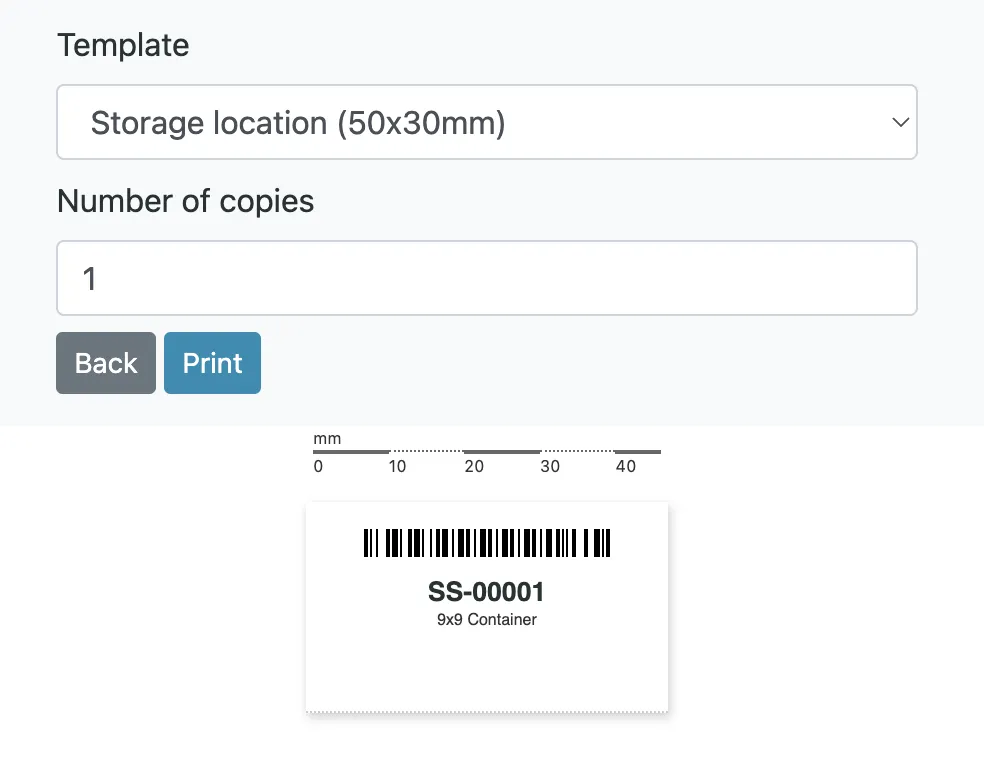
The template uses the same sticker mechanism as sample stickers, so a lab with different label stock can provide its own template in the same way.
Before you switch it on
- Write the retention rules down with the quality manager before entering them. They are part of the quality system, and the grid should mirror a document, not replace one.
- Decide when samples are stored relative to verification, for the reason given above.
- Agree on the list of retrieve reasons and make the reason mandatory from day one. Adding the requirement later leaves a history with and without reasons.
- Print location stickers when setting up the facility structure, not afterwards, so the IDs on the shelves and in SENAITE match from the start.