
Most of a SENAITE working day happens in listings: samples,
analyses, worksheets, batches, clients. They all share one table
component, senaite.app.listing, so a change there reaches every
table at once.
The 2.7 development cycle added a set of changes that are useful
on their own and more useful together: filters on single columns,
saved filter presets, coloured labels on samples, and a column
chooser that copes with thirty and more columns. All of it is
merged on the 2.x branches of senaite.app.listing and
senaite.core and will ship with SENAITE 2.7, which is not yet
released at the time of writing.
Filtering a single column
Hover over a column header and a funnel icon appears. Click it, pick or type a value, and the listing narrows to matching rows. Filtering the Client column of the samples listing to one client is the typical first use.
Three details make this practical:
- The dropdowns narrow each other. The values offered for one column take every other active filter into account. Filter the samples listing to one client, and the dropdowns of the other columns only offer values that occur in that client’s samples. Without that you could combine two filters that cannot both be true and stare at an empty table.
- Multiple values on keyword columns mean AND. The samples
listing has an Analyses column, hidden by default, that lists
the analysis keywords of each sample including its partitions.
Filtering it to
CaandMgreturns samples that have both, not samples that have either. The autocomplete is filled from the values actually present in the catalog. - Every active filter shows as a chip. Above the table, each
filter appears as a removable chip, for example
Client: Riverside Water ×. Click the×and only that filter is cleared.

Active column filters are written into the page URL. A filtered view can therefore be bookmarked or sent to a colleague as a link, which matters for the next section.
Saved filters
Next to the search box sits a bookmark icon. Set up the view you need, open the menu and choose Save current view. A preset stores the selected state button, the column filters, the sort column and direction, the page size and the search term.
From the same menu you rename, delete and update presets. When the view on screen no longer matches the preset it came from, the preset is tagged modified, and you can either write the current view back into it or return to the stored version. One preset can be marked Auto-apply on open: it is applied whenever you open that listing without filter parameters in the URL. A link with its own filters always wins over your default, so a colleague’s shared link shows what they meant to show.
A worked example for a reception desk:
- Open the samples listing, click the Due button, filter
Sample Type to
Drinking water, sort by Date Sampled ascending. - Save it as
Drinking water to receive, oldest first. - Mark it Auto-apply on open.
From then on the samples listing opens on exactly that view for this user, in this browser.
That last phrase is the limit to know. Saved filters live in the browser’s local storage, not in SENAITE. They are per user and per browser, they do not appear on another computer, colleagues cannot see them, they are not part of any backup, and clearing the browser data deletes them. They are a personal convenience. For a view the whole team should share, send the URL with the filters in it, or build a Databox.
Presets are kept separately per kind of listing. The global samples listing and the samples listing inside a client have different columns and keep separate presets. Presets do not store which columns are visible; that is the job of the column chooser.
Labels as coloured chips
Samples can carry labels, for example Urgent, Re-run or
Accreditation audit. Labels are defined in the setup with a
name and, new in 2.7, a colour. In the samples listing they appear
as coloured chips under the sample ID.
Clicking a chip filters the listing to samples with that label,
and the URL gains ?labels=<name>. A second chip adds a second
label to the filter, a click on an active chip removes it. Saved
filters store the label selection as well, and the reset button
next to the search box clears it.
Two permissions control labels. Assigning and removing them,
including the bulk Manage labels dialog for selected samples,
is reserved to Lab Clerk, Lab Manager and Manager by default.
Seeing them is open to lab roles but not to client contacts. That
is deliberate: a label such as Complaint or Check result with manager is internal, and client contacts who look at their own
samples do not see it.
Labels work best as a short, agreed list. If every user invents their own, the chips turn into noise within a month. Agree on five to ten labels in the setup phase, give each a colour with a meaning, and remove the ones nobody uses.
Choosing columns
The Display Columns button opens the column chooser. The
header shows how many columns are visible out of how many exist,
for example 13 / 35. A search field at the top finds a column
by name, Show all and Hide all act on everything at once,
visible columns can be dragged into a new order, and hidden ones
are added back with the plus button.
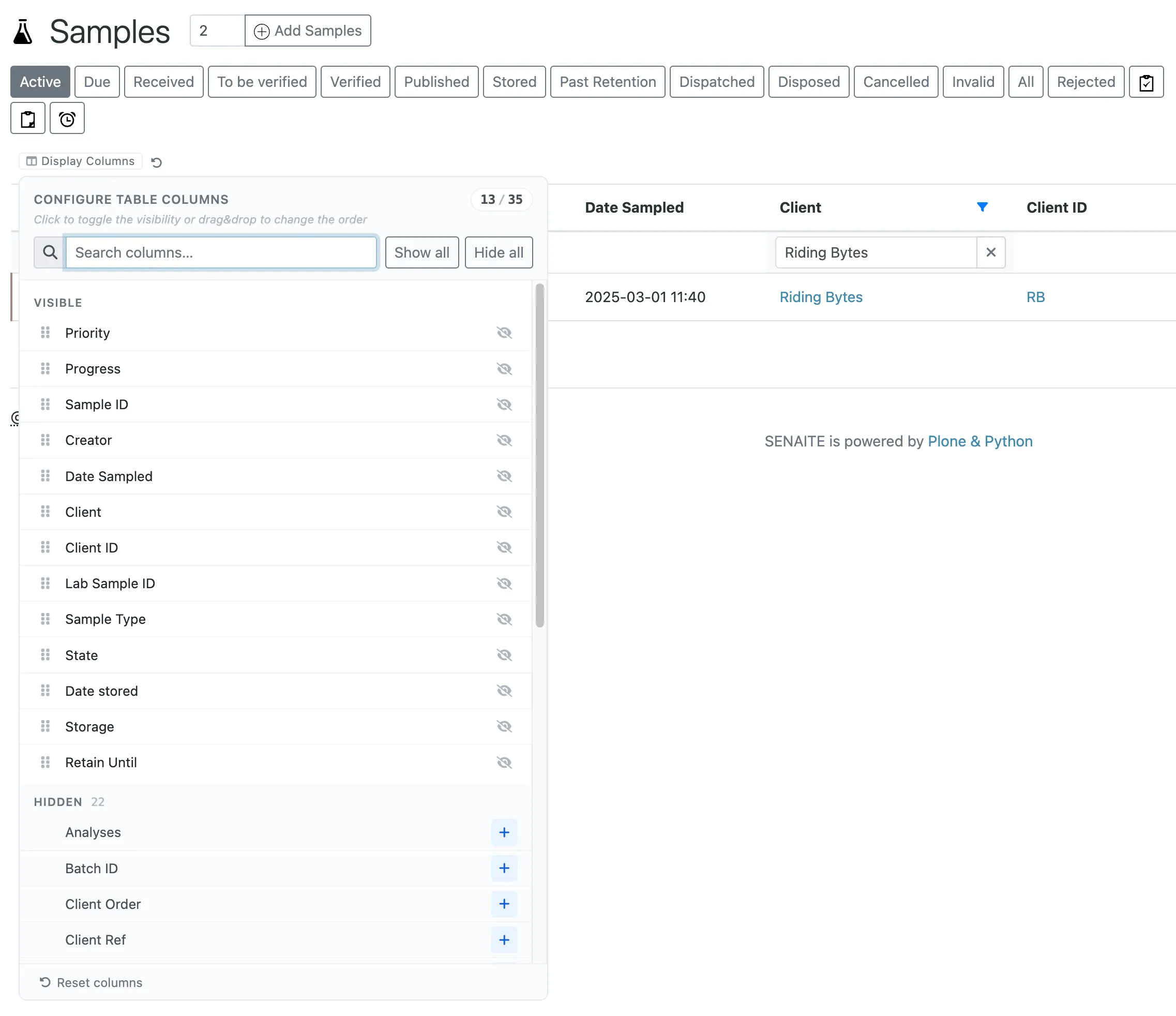
Like saved filters, the column choice is stored in the browser, per kind of listing. Reset columns returns to the default set and order. The export button of a listing writes the columns you currently see, so a well chosen column set is also a quick CSV extract.
A setting for very long listings
When rows are selected, the listing asks the server which workflow actions apply to all of them. On a worksheet with a hundred analyses that question takes noticeable time on every click. In 2.7 this can be switched off for the whole site under SENAITE Registry, tab Listings, option Fetch transitions on select. The buttons are then fetched on demand from the row context menu instead. Leave it on unless users actually notice the lag.
What to set up in a new installation
- Agree on the sample labels and their colours before go-live.
- Show each team how to save one or two presets for their own daily views, and tell them that presets stay in their browser.
- Write the URLs of shared views into the lab’s work instructions instead of describing filter clicks in prose.