

Spotlight is the search overlay that opens on a keyboard shortcut
from any page in SENAITE, Ctrl+Space by default. Type a sample
ID, press Enter, and you are on the sample. For many users that is
all they ever do with it.
senaite.app.spotlight was rewritten for the 2.7 release cycle.
The changes are merged on its 2.x branch and ship with SENAITE
2.7, which is not yet released at the time of writing. The new
version is worth ten minutes of training, because three small
pieces of syntax make it much faster than clicking through
folders.
The search syntax
A prefix scopes the search to one catalog. s: searches only
samples, w: worksheets, c: clients. s:CA20 finds samples
whose ID or title matches CA20, without clients, contacts or
setup items mixed in. A prefix is any short token of up to three
letters or digits followed by a colon, and each catalog’s prefix
is set in the control panel.
is: filters by workflow state. CA20 is:received finds
matching items in a received state. Typing is: opens a list of
the states that actually occur, limited to the scoped catalog
when a prefix is used. The state is matched on whole parts of the
state name, so received matches sample_received. The same rule
has a side effect worth knowing: is:verified matches both
verified and to_be_verified, because both names contain the
part verified.
Inactive items are hidden unless you ask for them. A
deactivated client or a retired analysis service does not show up
in a normal search. is:inactive shows only inactive items,
is:active only active ones. A search for a workflow state such
as is:cancelled also finds cancelled items, since asking for a
state switches the default off.
The tokens combine. s:CA20 is:received is a valid query, and
the same tokens work in the search box of the full results page.
Results from several catalogs are ranked into one list by how well the ID or the title matches: an exact match first, then a match at the start, then a match anywhere.
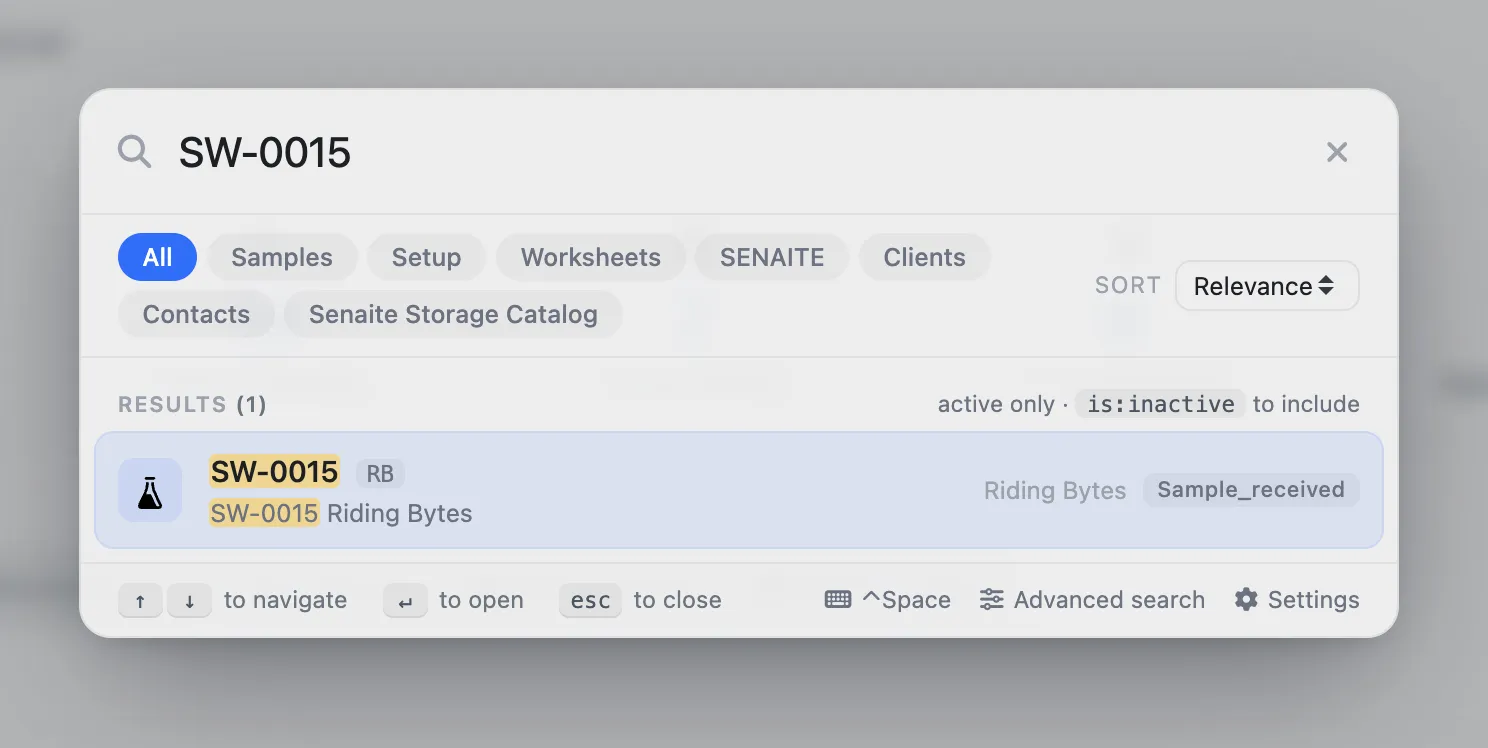
The chips above the results do the same as a prefix with the
mouse. A click limits the search to one catalog, Ctrl or Cmd
plus click adds a catalog to the selection.
The command palette
A / at the start of the query switches from search to commands.
The palette lists every command the current user may run, and
typing after the slash filters it: /new or /add narrows the
list to the “create” commands.
Those create commands are built from the setup: for every content type the user is allowed to add in a setup folder, there is an entry such as New Analysis Service or New Instrument. A lab manager sees many of them, an analyst only the few they hold the permission for.
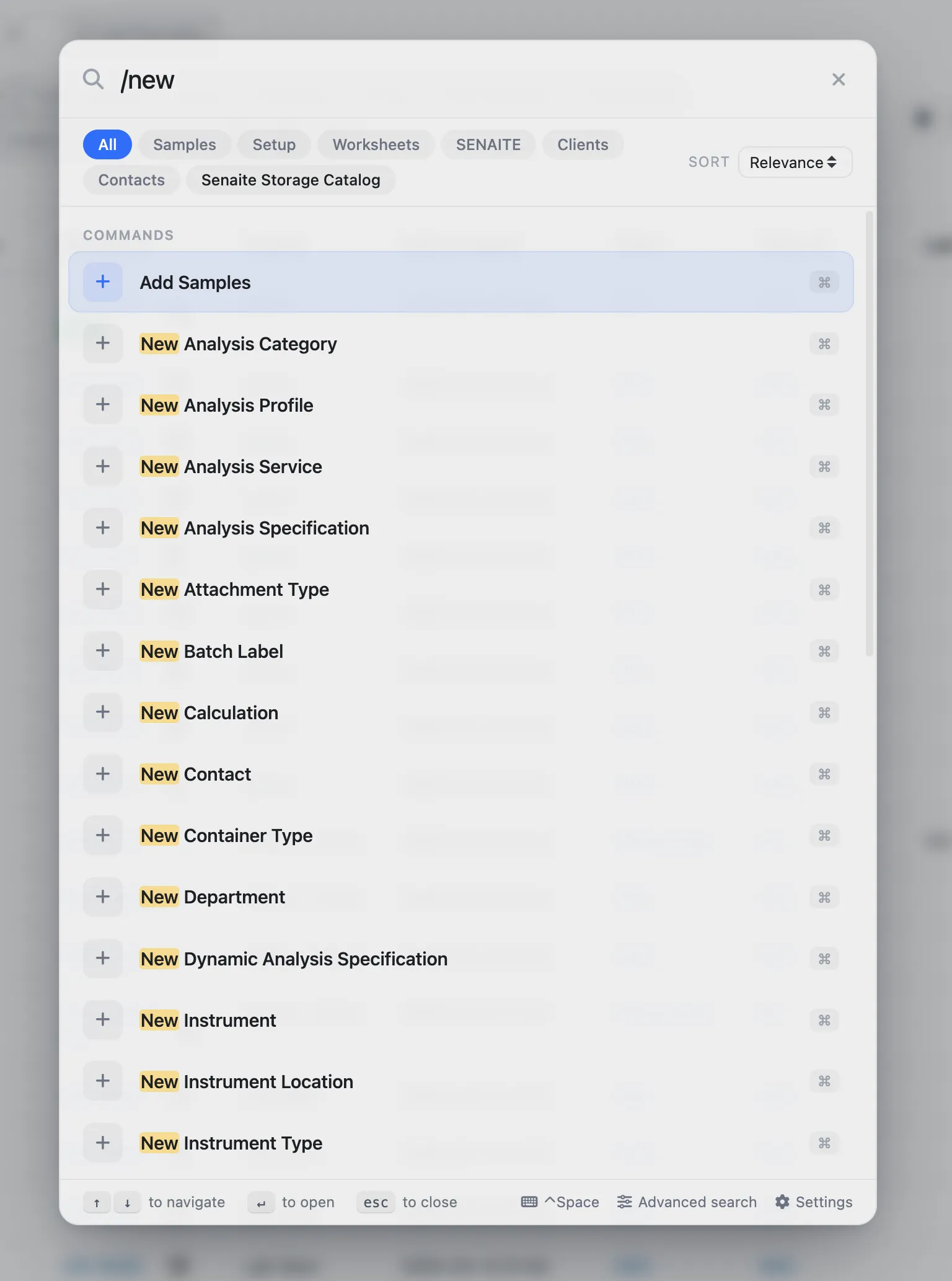
/new: every create command the current user is permitted to run.Further commands are configured in the control panel. Each has a
title, an icon, a target URL (the placeholder ${portal_url} is
replaced with the site address), optional keywords and an optional
permission that hides it from users without it. A useful first
entry in most labs is a command for a listing the team opens all
day, for example the samples waiting for verification. Add-ons can
ship their own commands through their registry profile.
The full results page
The overlay shows a limited number of hits. When the search is
broader than that, the link in the overlay footer opens a full
results page with catalog tabs and paging, where the same prefixes
and is: tokens work.
What client contacts see
Client contacts can use Spotlight too, and before the rewrite they could find lab objects they had no access to, click them and land on an access error. No data leaked, but it was confusing.
Every catalog now has a Show for clients switch. Setup, worksheets, clients and contacts are off by default, everything else is on. Lab staff are never restricted by this switch: it only applies to users linked to a client contact.
Configuration
The control panel is under Site Setup, Spotlight Settings, and users with the setup permission also reach it from a link inside the overlay.
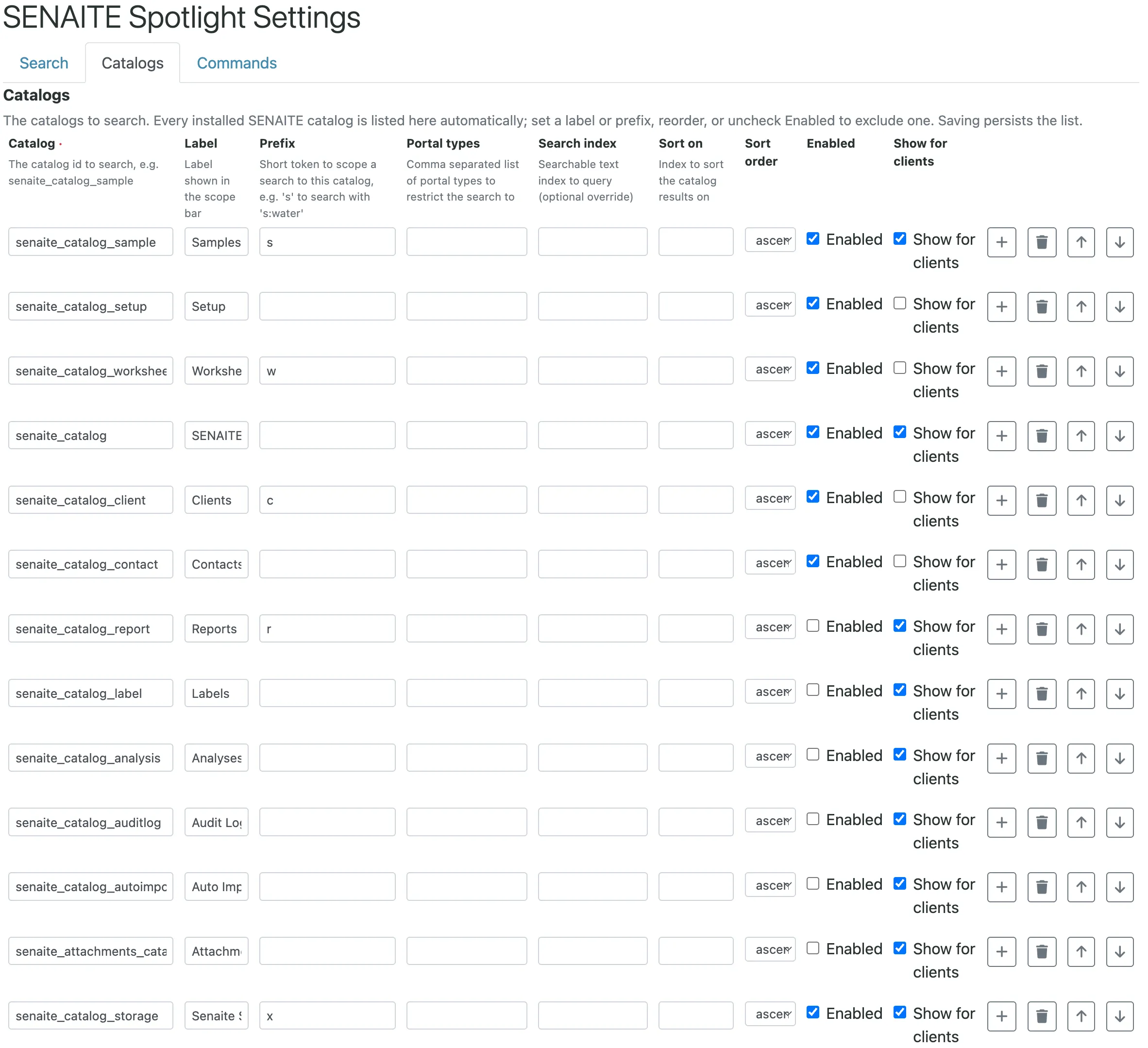
Catalogs are discovered automatically. Every installed SENAITE
catalog, including those of add-ons such as senaite.storage,
appears in the grid without manual entry. The bookkeeping catalogs
(analyses, audit log, import logs, attachments) are listed but
disabled, so they do not flood the results. Reports are disabled
by default as well.
Discovered catalogs get no prefix. The defaults are s, w,
c and r (reports). An add-on catalog has none until you give it
one. In the screenshot the storage catalog was given x by hand.
The shortcut is configurable. Some operating systems use
Ctrl+Space to switch the keyboard input source. If it collides
on your workstations, choose another combination such as
Meta+k or Control+Shift+f. Maximum results, minimum characters
before searching and the search delay are set in the same place.
What to agree on in the lab
- Keep the default prefixes and print them on the quick reference
card:
s:,w:,c:, plus any you add. - Decide whether reports should be searchable. Enabling the reports catalog helps the office, but adds hits for every sample that has a report.
- Review Show for clients after installing add-ons with their own catalogs, since a newly discovered catalog is visible to clients by default.